How to Install Astute Beta Server APK on Android 2026
Installing an APK on Android is usually straightforward, but problems often happen before the installation starts. An incomplete download, unsupported Android version, blocked installation permission, low storage, or a mismatched APK can all stop the process.
This guide shows you how to install Astute Beta Server APK on Android from start to finish. It also explains what to check before installing, what each Android prompt means, what to do with OBB files, and how to identify whether a problem is actually an installation problem or a server/login problem.
Important: Astute Beta Server is a third-party project and is separate from Garena’s official Free Fire Advance Server. Check the current APK information before installing because the file, version, requirements, and additional resources can change between releases.
Quick Answer: How to Install Astute Beta Server APK
If you already have the correct APK file, the basic process is:
- Check the current APK details on the download page.
- Download the complete
.apkfile. - Check the downloaded file before opening it.
- Allow your browser or file manager to install unknown apps.
- Tap the APK and select Install.
- Wait for Android to finish the installation.
- Open the app and complete its current setup.
- Turn off the Install unknown apps permission again if you no longer need it.
For the current file, use the main Download Astute Beta Server APK page because the version, file size, Android requirement, hash values, and OBB information can change with a new release.
Before You Install Astute Beta Server App (APK File)
Do not start by tapping the APK immediately.
A few checks can prevent most installation problems.
1. Check the Current APK Information
Open the current download page and compare these details:
| Check | What to confirm |
|---|---|
| APK version | Matches the current listing |
| File size | Download is complete and close to the listed size |
| Android requirement | Your phone meets the minimum requirement |
| File type | The download is an .apk file |
| Package information | Matches the listed release |
| SHA-256 | Matches when a hash is provided |
| OBB requirement | Follow the current release instructions |
| Source | Download from a source you trust |
Do not use an old APK simply because the filename looks similar. Beta and test builds can change, and an older file may produce installation or compatibility problems.
The current homepage is the best place to check changing file information before every new installation.
2. Make Sure Your Android Version Is Supported
Android compatibility is controlled by the APK itself.
Go to:
Settings → About phone → Android version
Then compare your Android version with the minimum requirement shown on the current Astute Beta Server download page.
Meeting the minimum Android version does not guarantee good gameplay. Processor, RAM, graphics capability, free storage, and network quality can also affect how the app performs.
3. Keep Enough Free Storage
Do not look only at the APK’s download size.
Android needs storage for the downloaded file, installation process, application data, cache, and any additional game resources.
For example, if an APK is several hundred megabytes, having only slightly more free space than the APK size can still create problems.
Before installing:
Settings → Storage
Remove unnecessary downloads, videos, old APKs, or unused apps if storage is low.
4. Make Sure You Downloaded an APK
A normal Android APK ends with:
.apk
An APK is the Android package file used to install an application.
Do not assume that every Android download is an APK.
You may also see files such as:
.xapk.apks.apkm.zip
These formats can contain multiple APKs or additional resources and may require a different installation method.
Do not rename an XAPK or APKS file to .apk and expect it to work.
This guide is for a normal APK file unless the current release instructions specifically say otherwise.
How to Install Astute Beta Server APK on Android
Step 1: Download the Correct APK
Open the current Astute Beta Server download page and start the APK download.
Use a stable Wi-Fi or mobile-data connection, especially for a large APK.
After the download starts, avoid repeatedly pressing the download button. Multiple partial files can make it difficult to know which APK is complete.
When the download finishes, open your browser’s Downloads section.
Check these things before installing:
- The file has the
.apkextension. - The filename looks correct.
- The download has completed.
- The file size is close to the current size shown on the website.
- You did not accidentally download an HTML page, ZIP file, or incomplete file.
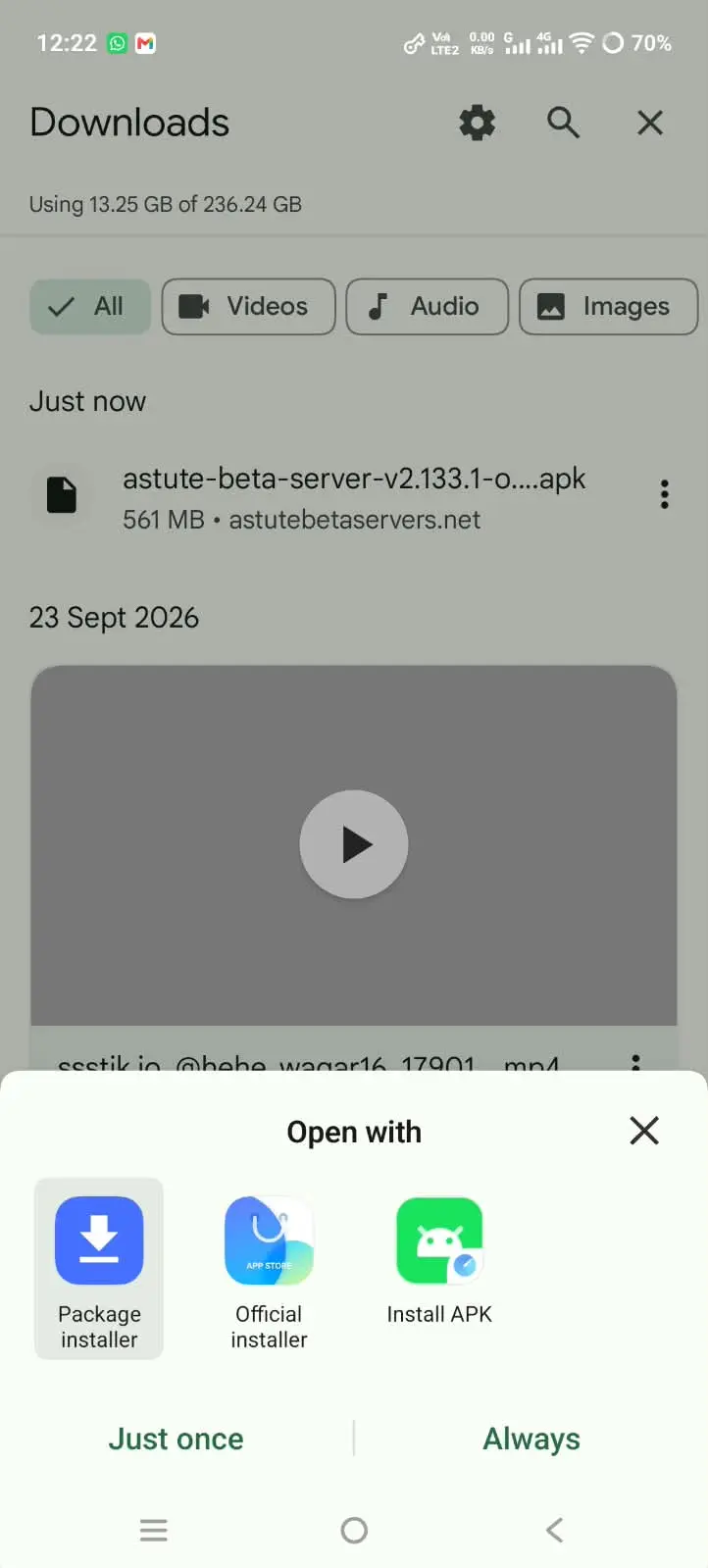
If the download stopped or restarted several times, it is better to download a fresh copy rather than trying to install a partial file.
If your download keeps failing, see the Astute Beta Server Download Failed guide for specific download fixes.
Step 2: Open the Downloaded APK
Once the file is completely downloaded:
- Open your browser’s Downloads list.
- Tap the Astute Beta Server APK.
- Android will check the package.
- If installation from that source is blocked, Android may show a security message.
- Follow the prompt to open the required installation setting.
If you downloaded the file using Chrome but are opening it through a file manager, the permission may need to be enabled for the app that is actually starting the installation.
This is one of the most common points of confusion.
Step 3: Allow Installation From Your Browser or File Manager
On modern Android versions, you usually do not turn on one global “Unknown Sources” switch.
Android 8.0 and later use a permission for the specific source that is installing the APK. For example, Chrome can be allowed to install apps while another browser remains blocked.
If Android shows a message such as:
For your security, your phone currently isn’t allowed to install unknown apps from this source.
Tap Settings.
Then look for:
Allow from this source
Turn it on for the browser or file manager you are using.
Then press the Back button and try the APK again.
Another way to find the setting
If the security prompt does not take you to the correct screen:
- Open Settings.
- Use the Settings search box.
- Search for Install unknown apps.
- Open the matching setting.
- Select the browser or file manager you used.
- Turn on Allow from this source.
- Return to the APK.
- Tap the file again.
The exact menu names can differ between Samsung, Xiaomi, Redmi, Oppo, Vivo, Realme, Tecno, Infinix, Pixel, and other Android devices.
The important part is this: Give installation permission to the app that is opening the APK.
Step 4: Install the APK
After the source permission is enabled, return to the downloaded APK.
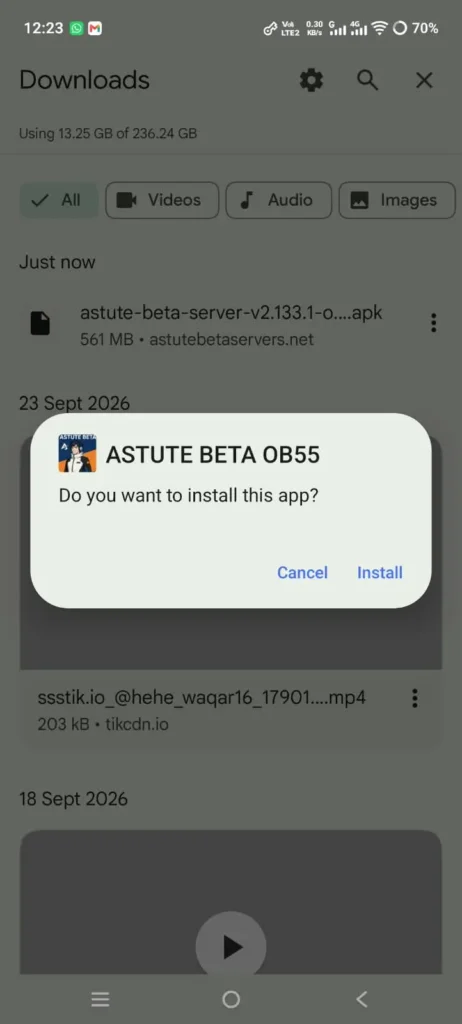
Tap:
Install
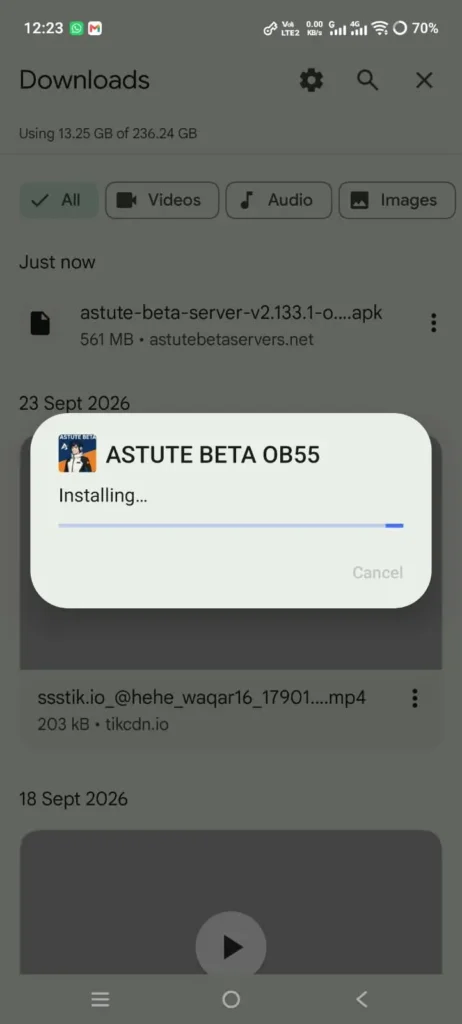
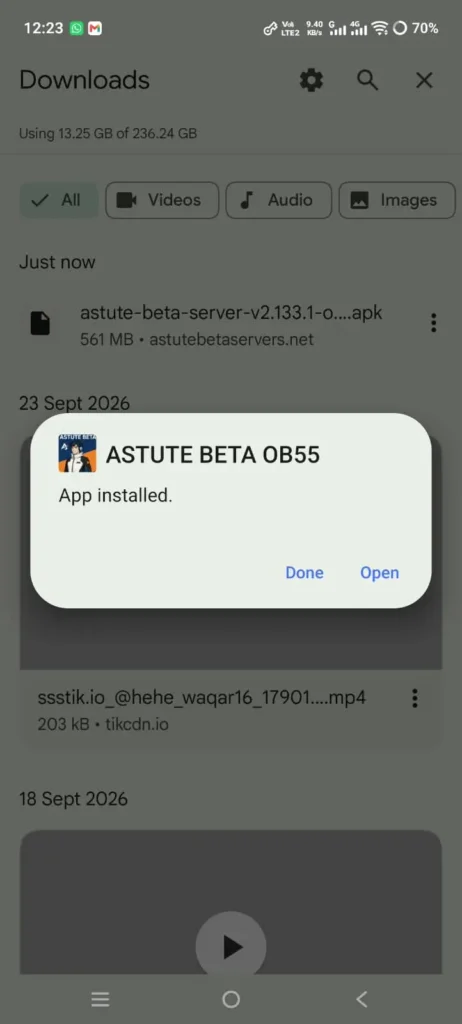
- Android will process the package.
- Do not close the screen while the installation is running.
- If the installation succeeds, Android should show an option such as: Open or Done
- Tap Open to start the app, or tap Done if you want to launch it later.
Step 5: Complete the First Launch
The first launch can take longer than later launches because the app may need to create files, load resources, connect to a server, or complete its initial setup.
Depending on the current release, you may see:
- A startup screen
- Resource loading
- Setup options
- Nickname settings
- Region or server options
- Login options
- Permission requests
- Additional resource downloads
Follow the screens shown by the version you installed.
Do not assume that an older screenshot or video will have exactly the same buttons.
Beta-style software can change its interface between releases.
A useful distinction
If the app installs and opens successfully, but then shows:
- Login failed
- Server error
- Connection problem
- Server unavailable
- Stuck loading
- Account restriction
the APK installation itself has already succeeded.
Repeatedly reinstalling the APK may not solve a server-side problem.
For broader problems, use the Astute Beta Server Not Working guide with fixes.
Step 6: Turn Off “Allow From This Source” After Installation
You do not need to keep APK installation permission enabled permanently.
After the installation is complete, you can return to:
Settings → Apps → Special app access → Install unknown apps
Select the browser or file manager you used and turn off:
Allow from this source
This reduces the chance of accidentally installing another APK from that source later.
Android lets users control this permission for individual installation sources.
What If Astute Beta Server APK Does Not Install?
The message “App not installed” does not identify one single problem.
There are several possible causes.
1. The APK Download Is Incomplete
This is one of the first things to check.
Compare the downloaded file size with the current file size shown on the download page.
If the file is much smaller than expected:
- Delete the incomplete APK.
- Restart the download.
- Use a stable connection.
- Wait until the download finishes.
- Check the file again before installing.
Do not try to repair an incomplete APK by renaming it.
2. Your Android Version Is Not Compatible
If the APK requires a newer Android version than your phone has, Android may reject the installation.
Check:
Settings → About phone → Android version
Then compare it with the current minimum Android requirement listed on the Astute Beta Server download page.
Do not install random older or modified APK files just to bypass a compatibility message.
3. Your Phone Does Not Have Enough Storage
A large APK needs more than its download size during installation.
If storage is almost full:
- Delete unnecessary files.
- Remove old APK copies.
- Clear unused downloads.
- Empty the recycle/trash area if your file manager has one.
- Restart the phone.
- Try the installation again.
4. Another App Is Creating a Package Conflict
Android can reject an APK if another installed application conflicts with its package or signing information.
You may see messages related to:
- App conflict
- Package conflict
- Signature mismatch
- Update not compatible
- A newer version already installed
Do not immediately uninstall your normal Free Fire installation just to force the APK to install.
First identify which application is creating the conflict.
If the beta APK is intended to coexist with another app, the package setup must support that. If it is not designed to coexist, installing both may not be possible without changing the application package.
5. The APK Is Damaged or Mismatched
If Android repeatedly rejects the same file:
- Download it again.
- Compare the file size.
- Compare the SHA-256 hash if one is provided.
- Confirm that you downloaded the intended release.
- Check that the APK was not modified after download.
A SHA-256 value is useful because even a small change to the file produces a different hash.
If the website lists a hash, use that value as a file check rather than trusting the filename alone.
What If Android Says “There Was a Problem Parsing the Package”?
A parsing error generally means Android could not properly read or process the APK.
Possible causes include:
- Incomplete download
- Corrupted APK
- Unsupported Android version
- Invalid package
- Wrong file format
- Damaged file
- APK intended for a different device configuration
Try this order:
- Delete the APK.
- Download a fresh copy.
- Check the file extension.
- Confirm Android compatibility.
- Restart the phone.
- Try the installation again.
If the same fresh file fails on a compatible device, the problem may be with the APK itself rather than your installation settings.
What If the Install Button Does Nothing?
If you can see the installation screen but tapping Install does not work:
Try these checks:
- Close the installer.
- Restart the phone.
- Open the APK again.
- Confirm the source installation permission.
- Close screen-filter or floating-overlay apps temporarily.
- Make sure storage is available.
- Try opening the file from the phone’s file manager instead of the browser.
Some phones behave differently depending on which app opens the APK.
What If Play Protect Blocks the APK?
Google Play Protect checks apps installed from outside Google Play as well as apps from Google Play. It can warn about potentially harmful software and may prevent some applications from installing. Google recommends keeping Play Protect enabled.
If Play Protect shows a warning:
Do not immediately disable Play Protect just to force the installation.
Instead:
- Read the warning carefully.
- Confirm where the APK came from.
- Check the APK’s file details.
- Compare its SHA-256 if available.
- Consider whether you actually trust the file.
- Stop the installation if the warning concerns behavior or permissions you do not expect.
An APK being downloadable does not automatically mean it is safe.
Likewise, passing a malware scan does not make a third-party app an official Garena product.
What If Android Shows a Developer Verification Message?
Android’s developer verification system is being introduced as an additional security layer for apps and developers.
If your phone shows a developer verification or unverified-app message, read the Android prompt carefully and use the security options provided by Android.
Do not follow random “bypass” instructions from unknown websites or videos.
Google says Android is keeping sideloading available, while adding extra safeguards around apps from unverified developers. The exact behavior can depend on the device, region, distribution channel, and Android rollout stage.
APK vs XAPK, APKS, and Other File Types
One common mistake is treating every Android download as a normal APK.
APK
A standard Android application package.
Usually: Tap → Install.
XAPK
Can contain an APK plus additional resources.
Usually: Requires a compatible installation method.
APKS
Can contain multiple split APK files.
Usually: Requires a split-APK installer or another supported installation method.
AAB
An Android App Bundle is mainly a publishing format and is not the normal file you tap to install directly on a phone.
If your Astute download is specifically listed as an APK, use the normal APK installation process in this guide.
Does Astute Beta Server APK Need an OBB File?
Do not download an OBB file just because another website mentions one.
Check the current release information on the Astute Beta Server download page.
If the current release says that no separate OBB download is required, install the APK normally and allow the app to handle any required resources according to its own setup.
If a future release specifically requires an OBB:
- Use the OBB belonging to the same release.
- Do not mix files from different versions.
- Do not use an old OBB simply because its filename looks similar.
- Follow the exact folder and file instructions provided for that release.
Mismatched game resources can lead to loading problems, missing content, crashes, or version conflicts.
What to Do Immediately After Installation
Once Astute Beta Server is installed, use this checklist:
Installation checklist
- APK installed without an error
- App icon appears
- App opens normally
- Android version meets the listed requirement
- Enough storage remains
- Required resources can load
- No unexpected permission request appears
- Login screen behaves normally
- Server connection works
- Installation permission can be disabled after setup
This helps you separate installation problems from app or server problems.
For example:
APK will not install
→ Installation problem
APK installs but app crashes immediately
→ Compatibility, resource, or app problem
App opens but cannot connect
→ Network or server problem
App opens but login fails
→ Login/account/server problem
App loads but stays on a resource screen
→ Resource, connection, compatibility, or server problem
That distinction can save you from reinstalling the same APK repeatedly when the actual issue is elsewhere.
Security Checks Before Using a Third-Party APK
Manual APK installation gives you more control, but it also means you should perform your own checks.
Before opening the app, check:
File source
Download from a source you trust.
File details
Compare:
- Version
- File size
- Package name
- SHA-256
- MD5, when provided
- Signing information, when available
Permissions
Review what the app requests.
Be cautious if an APK asks for access that does not make sense for its stated purpose, especially:
- SMS
- Contacts
- Call logs
- Accessibility services
- Device administrator access
- Unrelated personal data
Play Protect
Keep Google Play Protect enabled and review any warning it displays. Google says Play Protect scans apps from outside Google Play and can warn, disable, remove, or block harmful applications.
Account information
Do not enter:
- Passwords
- Recovery codes
- OTPs
- Payment information
into unexpected third-party pages.
An installation guide should help you install the APK, but it should never ask you to hand over sensitive account credentials.
Should You Install Astute Beta Server on Your Main Device?
That depends on how comfortable you are with third-party software.
Before installing, consider:
- Is the APK source trustworthy?
- Does the file match the published information?
- Does your device meet the requirements?
- Are you comfortable with manual APK installation?
- Are you willing to deal with possible bugs or server problems?
- Does using third-party software create account-policy concerns for your game account?
There is no installation method that removes every risk associated with third-party software.
Frequently Asked Questions
How do I install Astute Beta Server APK on Android?
Download the correct APK, check that the download is complete, allow your browser or file manager to install unknown apps, open the APK, tap Install, and wait for Android to finish. Then open the app and complete the setup shown by the current release.
Where should I download the Astute Beta Server APK?
Use the current Astute Beta Server download page and check the file information before installing. The version, size, Android requirement, hash, and additional-file requirements can change between releases.
Do I need to enable Unknown Sources?
On Android 8.0 and newer, the setting is usually called Install unknown apps and is controlled separately for each source app. Older Android versions use a different unknown-source setting.
Which app should I allow to install unknown apps?
Allow the app that is opening the APK.
For example:
- Opening the APK from Chrome → allow Chrome
- Opening the APK from a file manager → allow that file manager
Why does Android say “App not installed”?
Possible causes include an incomplete APK, insufficient storage, unsupported Android version, package conflict, signature mismatch, or a damaged file.
Check the file and device requirements before trying random fixes.
Why does Astute Beta Server install but not open?
Installation and startup are separate stages. Check compatibility, available storage, app cache, required resources, and server availability.
If the app opens and then fails to connect, the problem may be unrelated to installation.
Should I turn off Play Protect to install the APK?
No. Play Protect is an Android security feature that checks apps from outside Google Play too. Google recommends keeping it enabled.
If Play Protect blocks an APK, investigate the warning instead of disabling security protections blindly.
Can I install Astute Beta Server without an OBB?
If the current release is listed as APK-only, you do not need to add a separate OBB file. If a future release requires one, use the matching OBB for that release.
Can I install an old Astute Beta Server APK?
You can encounter older APK files online, but using an old build can create compatibility, server, or login problems.
For the current file, always check the latest information on the main download page.
What if my APK download is incomplete?
Delete the incomplete file and download it again from a stable connection. Compare the finished file size with the current listing before installing.
Can I install an APK while the normal Free Fire app is already installed?
It depends on the package and signing setup of the APK. If Android reports a package or signature conflict, do not uninstall your normal game blindly. Confirm which application is conflicting first.
What if Astute Beta Server opens but Login Failed appears?
If the application has already installed and opened, the installation worked.
A login or server error is a separate issue. Check the error message, network connection, current app state, and server availability instead of repeatedly reinstalling the APK.
Final Installation Checklist
Before you finish, make sure you have completed these checks:
Before download
- Check the current version
- Check the current file size
- Check Android compatibility
- Check whether an OBB is required
- Use a trusted download source
During download
- Use a stable connection
- Wait for the download to finish
- Do not install an incomplete file
During installation
- Allow installation from the correct source
- Open the
.apkfile - Tap Install
- Wait for Android to finish
After installation
- Open the app
- Review permissions
- Let required resources load
- Check login/server behavior
- Turn off Allow from this source when finished
If the APK still will not install after these checks, continue with the Astute Beta Server App Not Installed guide. If the app installs but has broader problems, use the Not Working guide.
Final Thoughts
The easiest way to avoid APK installation problems is to treat installation as a short verification process rather than simply tapping a download button.
Check the current file, make sure the download is complete, confirm Android compatibility, allow installation only for the source you trust, and keep Play Protect active. After installation, separate startup, login, connection, and server problems from the installation itself.
Most importantly, do not use an old APK, random OBB file, modified package, or unknown installer simply because the normal installation process failed. Start with the current file information, check the exact Android message, and fix the specific problem shown on your device.