Astute Beta Server App Not Installed? Causes and Fixes for Android
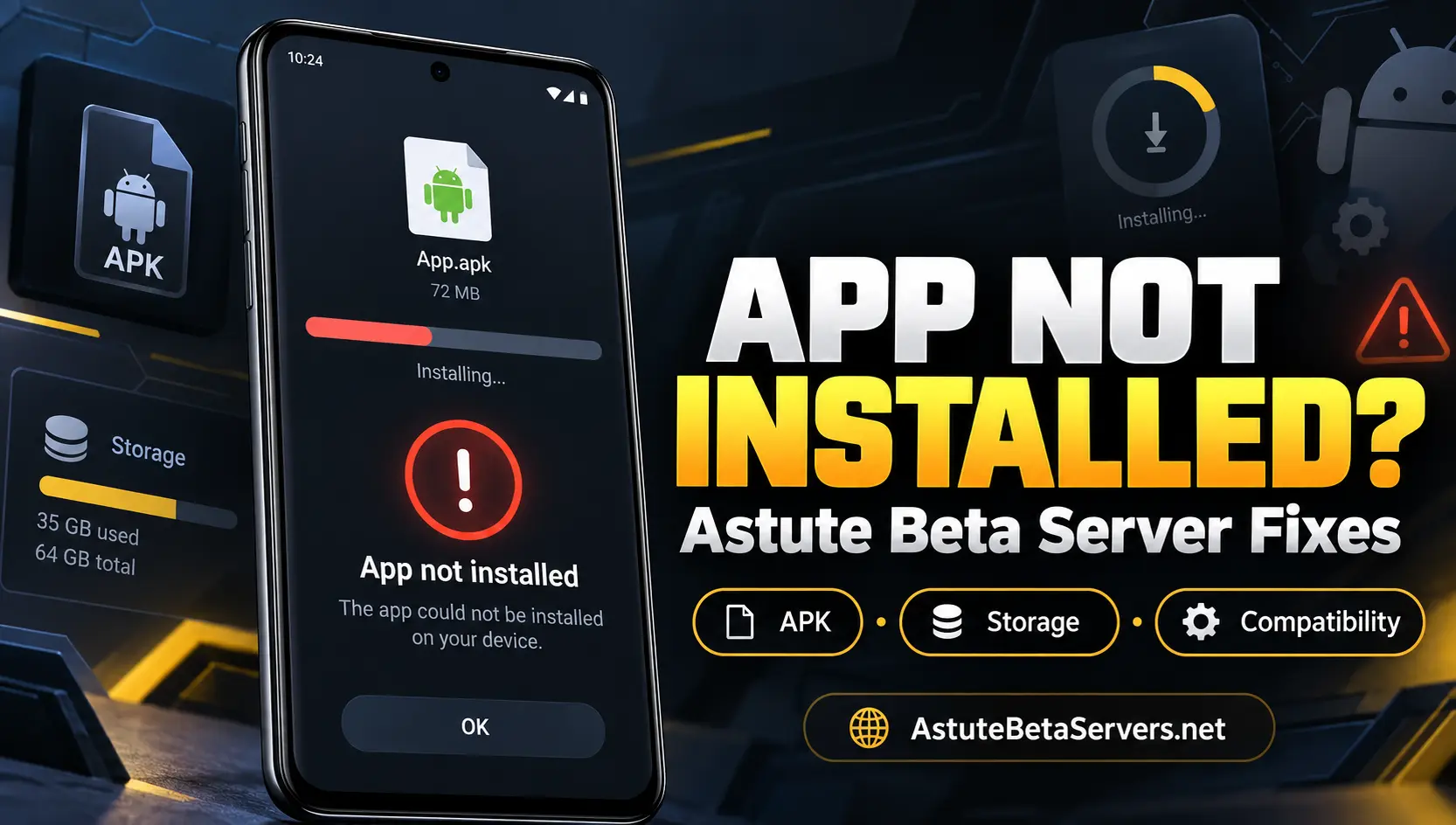
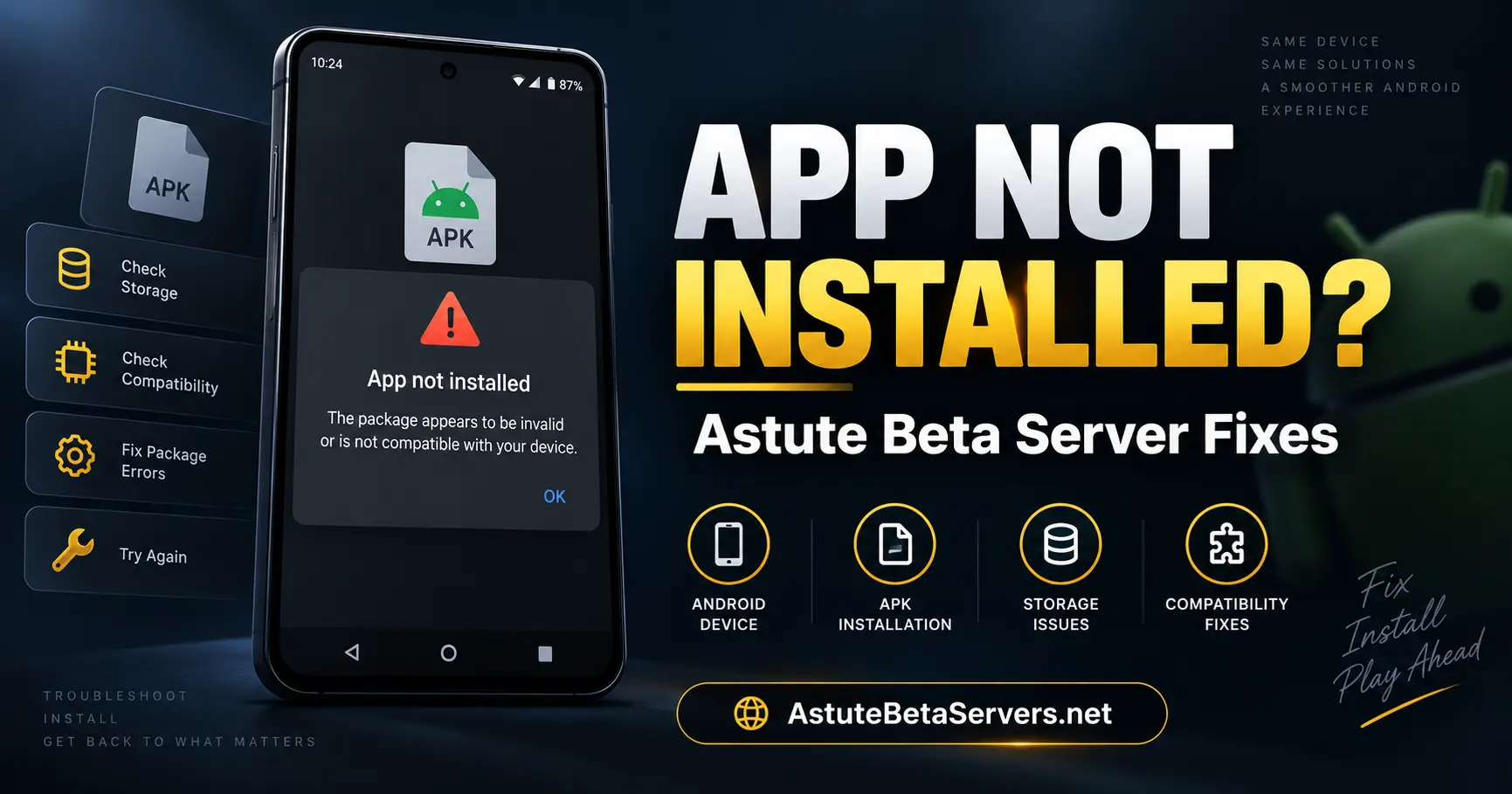
If Astute Beta Server shows “App Not Installed,” the APK has failed before the app can start. The cause may be low storage, an incomplete APK download, Android compatibility, installation permission, or a conflict with an older version already installed on your phone.
Do not keep installing the same APK again and again. Check the file, your available storage, Android version, and existing installation first.
Quick Answer: If Astute Beta Server APK is not installing, confirm that the file downloaded completely, make sure enough internal storage is available, check the current Android requirement, allow installation from the browser or file manager you used, and check whether another version is already installed.
Why Does Astute Beta Server Say App Not Installed?
Android can reject an APK for several reasons. The App Not Installed message does not always tell you exactly what caused the failure.
Use this table to identify the most likely problem.
| Problem | Possible Cause | Check First |
|---|---|---|
| App Not Installed | Existing package conflict | Installed version |
| Installation stops | Incomplete APK download | File size |
| APK will not install | Low storage | Free internal storage |
| Installation blocked | Source permission disabled | Install Unknown Apps setting |
| Update fails | Old version conflicts with new build | Existing installation |
| Device unsupported | Android compatibility | Android version |
| Security warning | Android security check | File source and warning details |
Start with the simple checks below before uninstalling anything.
1. Check the Current Astute Beta Server APK
Before changing Android settings, make sure you are using the APK currently listed on AstuteBetaServers.net.
The main download page contains the latest:
- APK version
- file size
- Android requirement
- package details
- verification hashes
- download link
If the APK on your phone has different file information, check where it came from before trying to install it.
You can check the latest details on the Astute Beta Server APK page.
2. Make Sure the APK Download Completed
Astute Beta Server is a large APK. If your connection stopped during the download, the file may be incomplete.
Check:
- APK filename
- version number
- file size
- download status
- SHA-256 hash, when available
If your downloaded file is much smaller than the size listed on the website, delete it and download the APK again.
An incomplete APK should not be treated as a working installation file.
3. Check Available Storage
Your phone needs more free storage than the APK file size alone.
Android may also need storage for:
- temporary installation files
- app cache
- downloaded resources
- updates
- game data
Open:
Settings → Storage
If your internal storage is nearly full, remove unused downloads, videos, apps, or other large files before trying again.
4. Check Your Android Version
The minimum Android requirement can change between Astute Beta Server releases. Check the current requirement shown on the main download page before installing the APK.
You can usually find your Android version under:
Settings → About Phone → Android Version
The exact menu may differ depending on your phone.
If your device runs an Android version below the listed requirement, installation may fail, or the app may not work correctly.
Android version is not the only compatibility factor. Device hardware, processor architecture, available storage, and system configuration can also affect compatibility.
5. Allow APK Installation From the Correct Source
Astute Beta Server is installed outside Google Play, so Android may require permission for the browser or file manager that opens the APK.
The setting is usually found under:
Settings → Apps → Special App Access → Install Unknown Apps
Then select the app you used to open the APK.
For example:
- Chrome
- Files
- File Manager
- another browser
Enable:
Allow from this source
Then try installing the APK again.
After installation, you can disable this permission again.
6. Check for an Older Version Already Installed
An existing version of Astute Beta Server may conflict with the new APK.
If Android treats the new file as an update, the package and signing information need to be compatible with the installed version. A mismatch can cause the installation to fail.
Before removing anything:
- Check which version is installed.
- Save anything important where possible.
- Confirm that your new APK is the intended version.
- Uninstall the old build only if necessary.
- Restart the phone.
- Install the current APK again.
Remember that uninstalling an app may remove its locally stored data.
7. Fix an Astute Beta Server Update Conflict
Sometimes a fresh installation works, but installing a newer APK over an older version fails.
This can happen when the two builds do not match correctly as an Android app update.
If an update will not install:
- check the installed version
- confirm the new version
- avoid mixing APKs from unrelated websites
- check that you downloaded the correct file
- remove the older installation only when necessary
- restart your phone before installing again
Installing several different builds over each other can make it harder to identify the actual problem.
8. Restart the Phone Before Trying Again
After checking the APK, storage, Android version, and existing installation, restart the phone.
Then:
- Wait for Android to finish starting.
- Do not open unnecessary apps.
- Open your Downloads folder.
- Select the current APK.
- Try the installation again.
If the same error appears, do not keep repeating the same process. Continue with the checks below.
9. Should You Disable Google Play Protect?
We do not recommend disabling Google Play Protect as a normal installation fix.
Astute Beta Server is distributed outside Google Play, so security warnings should be reviewed rather than ignored.
Before changing a security setting, check:
- where the APK came from
- version number
- file size
- SHA-256 hash
- requested permissions
- package information
Google recommends keeping Google Play Protect enabled because it checks apps for potentially harmful behavior.
If Play Protect displays a warning, read the warning first. Do not disable protection just because you want an APK to install.
10. Verify the APK Before Downloading Again
If installation still fails, compare the APK on your phone with the current file information published on AstuteBetaServers.net.
Check:
- version number
- file size
- file type
- package name
- Android requirement
- SHA-256 hash
The SHA-256 hash can help confirm whether the downloaded APK matches the file listed on the website.
If important file details do not match, avoid installing the APK until you verify the source.
What If Astute Beta Server Installs but Does Not Open?
If Android completes the installation and the app icon appears, you no longer have an App Not Installed problem.
The issue is now happening after installation.
You may see:
- black screen
- stuck loading
- app crash
- resource download failure
- login failure
- server connection error
For those problems, use our Astute Beta Server not working guide.
That guide covers startup, loading, login, network, server, and crash problems separately.
What If the App Installs but Login Fails?
If Astute Beta Server installs and opens correctly but fails when you try to log in, the installation was successful.
A login failure should be handled as a network, server, request, or account-access issue rather than an APK installation failure.
Do not uninstall a successfully installed app every time a server error appears.
For login and server response problems, see our Astute Beta Server Login Failed 400 & 500 guide.
Should You Delete the Old APK File?
The downloaded .apk file is the installer.
Once the app has been installed, deleting the APK file from your Downloads folder does not normally uninstall the installed app.
These are two different things:
APK file: Installation package stored on your phone
Installed app: Application already installed in Android
You can remove old APK installers when you no longer need them.
If you use the files for testing or verification, you may want to keep a copy.
Should You Clear the Package Installer Cache?
This should not be one of your first fixes.
Android settings and package installer behavior can differ between phone manufacturers and Android versions.
Start with:
- Check the APK.
- Check storage.
- Check the Android version.
- Review installation permissions.
- Check the existing app version.
- Restart your phone.
Only move to device-specific Android troubleshooting if these checks do not solve the problem.
When Should You Download the APK Again?
Download a fresh APK when:
- the first download stopped early
- the file size is incorrect
- the APK cannot be opened
- the verification hash does not match
- you downloaded the file from an unknown source
- a newer version has replaced the previous APK
Because the APK can be large, use a stable internet connection and allow the download to finish completely.
Avoid downloading several copies from different websites. That can make it difficult to know which APK you are installing.
How We Check Astute Beta Server APK Files
Before updating file information on AstuteBetaServers.net, we check available details for the release.
Our checks can include:
- APK version
- file size
- package information
- SHA-256
- MD5
- Android compatibility
- installation
- first-time setup
- requested permissions
- startup behavior
- login behavior
The results can change when a new version is released.
Release details can change over time. The main download page is our source for the current version, file size, Android requirements, package details, hashes, and download link.
This guide focuses on installation problems that can apply across different releases.
Frequently Asked Questions
Why does Astute Beta Server say App Not Installed?
The installation may fail because of low storage, an incomplete APK, Android compatibility, installation permission, or a conflict with an existing version.
Why is Astute Beta Server APK not installing?
Check whether the APK downloaded completely, confirm your Android version, make sure enough storage is available, review APK installation permission, and check whether another version is already installed.
How much storage does Astute Beta Server need?
Your phone needs more free storage than the APK file size alone. Android may also need space for temporary installation files, cache, downloaded resources, updates, and game data. Check the current APK size on the main download page.
Why will the new APK not install over the old version?
The existing installation and new APK may have incompatible package, signing, or version information. Android may reject the new file instead of treating it as a valid update.
Should I uninstall the old Astute Beta Server first?
Only when necessary. Check the installed version first, and remember that uninstalling may remove locally stored app data.
Can an incomplete download cause App Not Installed?
Yes. If the APK did not download completely, Android may fail to install it. Compare the file size and verification details before trying again.
Should I disable Google Play Protect?
We do not recommend disabling Play Protect as a standard fix. Review any security warning and verify the APK before changing Android security settings.
Why does Astute Beta Server install but not open?
If installation finishes successfully, the issue is no longer an installation failure. Check startup, cache, storage, compatibility, game resources, network access, and server availability.
Will reinstalling fix every Astute Beta Server error?
No. Reinstalling may help with a damaged or conflicting installation, but it may not fix login, server, network, or maintenance problems.
Conclusion
If Astute Beta Server shows App Not Installed, first identify what is blocking the installation. Check the APK download, available storage, Android compatibility, installation permission, and any existing installation before making larger changes.
Do not repeatedly install different APK files or disable Android security protection without identifying the cause. Once the app installs successfully, use the main troubleshooting guide for startup, loading, login, crash, or server problems.